How to Create Subdomain in WordPress from Blogger The title is a bit confusing huh. Less is more like this: we have a blog on blogspot and already using their own domain, well the story we want to make a new blog on wordpress but using a subdomain of the domain used in the blogspot. Well, that's what the title means: D. This tutorial actually has a lot of requests, but only now can be realized. This tutorial is also a continuation of my previous post related to this tutorial that is How to Create Subdomain in Blogspot . For those who have not read, please be first. Ok, go ahead. Basically to make a subdomain from blogspot to wordpress is very easy, it's just that I'm a bit confused to write this tutorial because not all registrar or domain provider have the same control panel display, so even though this tutorial I explain as simple as possible, does not guarantee my friend Mudeng: D. First of all you need to set up of course must already have a b...
Complete Blogger Tutorial from A to Z for Beginners
 table of contents [ Hide ]
- 1 Why choose blogger.com?
- 2 How to create a blog at blogger.com
- 3 How to Post Articles
- 4 How to install widgets
- 5 Understanding the menus in blogger
- 6 How to replace / install a template
- 7 How to create static pages
- 8 How to install favicon
- 9 How to change blog title with logo
- 10 Another blogger tutorial
Blogger.com or better known as blogspot is a service to create a blog for free which can be spelled out very easy to use.
But if the name of newbies who learn blogging sometimes though easy to still feel difficult and complicated.Well for that reason it would not hurt if I make a complete blogger tutorial from A to Z specifically for beginner bloggers.Hopefully the tutorial that I wrote below can be a bit of enlightenment for budding bloggers who are just learning blogging.

table of contents [ Hide ]
- 1 Why choose blogger.com?
- 2 How to create a blog at blogger.com
- 3 How to Post Articles
- 4 How to install widgets
- 5 Understanding the menus in blogger
- 6 How to replace / install a template
- 7 How to create static pages
- 8 How to install favicon
- 9 How to change blog title with logo
- 10 Another blogger tutorial
But if the name of newbies who learn blogging sometimes though easy to still feel difficult and complicated.
Well for that reason it would not hurt if I make a complete blogger tutorial from A to Z specifically for beginner bloggers.
Hopefully the tutorial that I wrote below can be a bit of enlightenment for budding bloggers who are just learning blogging.
Why choose blogger.com?
Before I go maybe my friend wondering:Why blogger, Mas? There are many others.
Indeed, in addition to blogger.com sebenernya still a lot of blogging services that can be used, but almost most people in Indonesia prefer blogger.com.Here are some reasons:- Because the free of course
- Easy to use for beginners
- A fairly complete feature
- Can be used to make money
- Trusted because it's managed by Google
- And others…
Also read: Choose Blogger.com, WordPress.com, or WordPress.org?
Before I go maybe my friend wondering:
Why blogger, Mas? There are many others.
Indeed, in addition to blogger.com sebenernya still a lot of blogging services that can be used, but almost most people in Indonesia prefer blogger.com.
Here are some reasons:
- Because the free of course
- Easy to use for beginners
- A fairly complete feature
- Can be used to make money
- Trusted because it's managed by Google
- And others…
Also read: Choose Blogger.com, WordPress.com, or WordPress.org?
How to create a blog at blogger.com
To create a blog on blogger.com is very easy. All you need is a Google account after that live register for free at www.blogger.com .Please see the following way:# 1. Sign in to https://blogger.com # 3. If you have not previously created a Google+ profile then click " Create a Google+ profile " but if you already have a Google+ profile then jump straight to the next step.
 # 4. Click " Continue to Blogger "
 # 5. Click " New blog " to create a new blog
 # 6. Fill in your blog details, then click " Create blog! "
 # 7. Blog is finished. To view your blog just click the " View blog "
To create a blog on blogger.com is very easy. All you need is a Google account after that live register for free at www.blogger.com .
Please see the following way:
# 1. Sign in to https://blogger.com

# 3. If you have not previously created a Google+ profile then click " Create a Google+ profile " but if you already have a Google+ profile then jump straight to the next step.

# 4. Click " Continue to Blogger "

# 5. Click " New blog " to create a new blog

# 6. Fill in your blog details, then click " Create blog! "

# 7. Blog is finished. To view your blog just click the " View blog "

How to Post Articles
After my friend managed to create a blog, the next thing you need to do is start filling your blog with writing or posting articles.How to post articles on bloggers themselves can be spelled out very easy.Basically almost the same as writing an email.If my friend is used to writing email then to post articles on bloggers is not a difficult thing to learn.But if my friend has never written an email then it means my friend was really clueless. But do not worry because it's not too late to learn.Here are the steps:# 1. First you need to login to https://blogger.com using your Google Account :# 2. If you are signed in, now click the button with the icon " Pencil ": # 3. Next my friend will be directed to the article editor page in blogger. Check carefully the image below with the explanation:
 Explanation:
- Number 1 : The title of the post
- Number 2 : Post content
- Figure 3 : Menus to change the writing color, font size, upload images and video, DLL.
- Number 4 : Post format. Just choose Compose for beginners
- Number 5 : Label posting. Explanation Read HERE
- Number 6 : Date of article written
- Number 7 : Permanent link.
- Number 8 : Location buddy when writing articles. Not required
- Number 9 : Some other options to choose from
- Number 10 : Button to publish your article
- Number 11 : Button to save post to Draft
- Figure 12 : Preview the post before it is published
# 4. After a little buddy understand the menus that exist in the article editor in blogger, after that just write what wrote wrote kepengin buddy.# 5. Click the " Publish " button when the article is finished.# 6. If you have just check your blog address pal. Now your posts are online and can be read by many people: Well it turns out to write a post on blogger is very easy is not it? Next please my friend can blog with at will.
After my friend managed to create a blog, the next thing you need to do is start filling your blog with writing or posting articles.
How to post articles on bloggers themselves can be spelled out very easy.Basically almost the same as writing an email.
If my friend is used to writing email then to post articles on bloggers is not a difficult thing to learn.
But if my friend has never written an email then it means my friend was really clueless. But do not worry because it's not too late to learn.
Here are the steps:
# 1. First you need to login to https://blogger.com using your Google Account :
# 2. If you are signed in, now click the button with the icon " Pencil ":

# 3. Next my friend will be directed to the article editor page in blogger. Check carefully the image below with the explanation:

Explanation:
- Number 1 : The title of the post
- Number 2 : Post content
- Figure 3 : Menus to change the writing color, font size, upload images and video, DLL.
- Number 4 : Post format. Just choose Compose for beginners
- Number 5 : Label posting. Explanation Read HERE
- Number 6 : Date of article written
- Number 7 : Permanent link.
- Number 8 : Location buddy when writing articles. Not required
- Number 9 : Some other options to choose from
- Number 10 : Button to publish your article
- Number 11 : Button to save post to Draft
- Figure 12 : Preview the post before it is published
# 4. After a little buddy understand the menus that exist in the article editor in blogger, after that just write what wrote wrote kepengin buddy.
# 5. Click the " Publish " button when the article is finished.
# 6. If you have just check your blog address pal. Now your posts are online and can be read by many people:

Well it turns out to write a post on blogger is very easy is not it? Next please my friend can blog with at will.
How to install widgets
Widgets or in blogger.com called Gadgets is a content in the blog in addition to posting from the blog itself. This widget is usually located in the sidebar of the blog. Widgets inside blogs can be installed, removed, and also moved around as desired. In addition this widget is optional, it should not be installed on the blog. So you can create a blog without installing widgets at all.Here are the steps to install widgets or gadgets on blogger:# 1. First of course login to your blog dashboard first# 2. After login, go to the " Layout " menu# 3. Well here my friend can add widget by clicking " Add Gadget "
 # 4. At blogger.com already provided some gadgets that are ready to be installed. Of course my friend is not obliged to install everything. Simply select the widget that is really needed.
What widgets should be installed?
Most beginner bloggers are usually too excessive in mamasang widgets on bloggers. Many consider that more and more widgets are installed on the blog then the blog will be more cool. Though the reality is actually the opposite.The fewer widgets attached to the blog will get better. The reason is because if installing too many widgets will confuse visitors, but it will also make loading blog longer.Here are some recommended widgets that should be posted on your blog:- Popular Post Widget
- Label Widget
- Archive Widget
- Profile Widget
In addition to these widgets, there is one more widget that is quite often used in blogger, ie widgets HTML / JavaScript .The function of this widget is to add widgets using HTML code as well as JavaScript. Commonly used to install third party widgets (widget not from blogger.com) and also to install banner ads.
Widgets or in blogger.com called Gadgets is a content in the blog in addition to posting from the blog itself. This widget is usually located in the sidebar of the blog.

Widgets inside blogs can be installed, removed, and also moved around as desired. In addition this widget is optional, it should not be installed on the blog. So you can create a blog without installing widgets at all.
Here are the steps to install widgets or gadgets on blogger:
# 1. First of course login to your blog dashboard first
# 2. After login, go to the " Layout " menu
# 3. Well here my friend can add widget by clicking " Add Gadget "

# 4. At blogger.com already provided some gadgets that are ready to be installed. Of course my friend is not obliged to install everything. Simply select the widget that is really needed.
What widgets should be installed?
Most beginner bloggers are usually too excessive in mamasang widgets on bloggers. Many consider that more and more widgets are installed on the blog then the blog will be more cool. Though the reality is actually the opposite.
The fewer widgets attached to the blog will get better. The reason is because if installing too many widgets will confuse visitors, but it will also make loading blog longer.
Here are some recommended widgets that should be posted on your blog:
- Popular Post Widget
- Label Widget
- Archive Widget
- Profile Widget
In addition to these widgets, there is one more widget that is quite often used in blogger, ie widgets HTML / JavaScript .
The function of this widget is to add widgets using HTML code as well as JavaScript. Commonly used to install third party widgets (widget not from blogger.com) and also to install banner ads.
Understand the menus in blogger
After my friend managed to post an article and install some widgets on the blog, then my friend need to understand the menus in blogger.These menus are very important to understand because it can facilitate your friend in taking care of your future blog.What are those menus, Mas?
Please login to blogger.com and go to your blog dashboard. After that you will be presented menus more or less like this: Below is a full explanation of the menus:1. "New entry" button
Button to create a new post or article2. Attempt
In this menu you can see the brief statistics of your blog like the number of visitors, the number of posts, the number of incoming comments, the number of followers, etc.3. Post
Menu to display a list of all articles in your blog4. Pages
Menu to create and display all static page list in your blog.A description of the static page is below.5. Comments
Menu to display all the list of comments that go to your blog.6. Google+
Menu to associate your blog with a Google+ profile7. Statistics
Menu to display complete statistics of your blog such as number of visitors, number of pageviews, visitor sources, and so on.8. Campaign
This menu is special for my friend who wants to promote your blog through Google AdWords (must ngeluarin duit)9. Layout
Here is where you set the layout of your blog and also place to install blog widget like widget of popular article, or widget followers.10. Templates
Here is a place to change the template or theme of your blog. In addition, my friend can also edit your blog template directly on this menu.11. Settings
Place your blog settings. If you want to change the blog title, change the address, or change the blog language then this menu is the place.In addition to the above menusnya menu there is still one more menu, only the menu is by default not shown for blogs in Indonesian language.To find out what the menu is, please read this post .
After my friend managed to post an article and install some widgets on the blog, then my friend need to understand the menus in blogger.
These menus are very important to understand because it can facilitate your friend in taking care of your future blog.
What are those menus, Mas?
Please login to blogger.com and go to your blog dashboard. After that you will be presented menus more or less like this:

Below is a full explanation of the menus:
1. "New entry" button
Button to create a new post or article
Button to create a new post or article
2. Attempt
In this menu you can see the brief statistics of your blog like the number of visitors, the number of posts, the number of incoming comments, the number of followers, etc.
In this menu you can see the brief statistics of your blog like the number of visitors, the number of posts, the number of incoming comments, the number of followers, etc.
3. Post
Menu to display a list of all articles in your blog
Menu to display a list of all articles in your blog
4. Pages
Menu to create and display all static page list in your blog.
Menu to create and display all static page list in your blog.
A description of the static page is below.
5. Comments
Menu to display all the list of comments that go to your blog.
Menu to display all the list of comments that go to your blog.
6. Google+
Menu to associate your blog with a Google+ profile
Menu to associate your blog with a Google+ profile
7. Statistics
Menu to display complete statistics of your blog such as number of visitors, number of pageviews, visitor sources, and so on.
Menu to display complete statistics of your blog such as number of visitors, number of pageviews, visitor sources, and so on.
8. Campaign
This menu is special for my friend who wants to promote your blog through Google AdWords (must ngeluarin duit)
This menu is special for my friend who wants to promote your blog through Google AdWords (must ngeluarin duit)
9. Layout
Here is where you set the layout of your blog and also place to install blog widget like widget of popular article, or widget followers.
Here is where you set the layout of your blog and also place to install blog widget like widget of popular article, or widget followers.
10. Templates
Here is a place to change the template or theme of your blog. In addition, my friend can also edit your blog template directly on this menu.
Here is a place to change the template or theme of your blog. In addition, my friend can also edit your blog template directly on this menu.
11. Settings
Place your blog settings. If you want to change the blog title, change the address, or change the blog language then this menu is the place.
Place your blog settings. If you want to change the blog title, change the address, or change the blog language then this menu is the place.
In addition to the above menusnya menu there is still one more menu, only the menu is by default not shown for blogs in Indonesian language.
To find out what the menu is, please read this post .
How to replace / install a template
One of the cool features that exist in blogger is that we can change the template or look our blog as you wish.In blogger.com has provided some of the default templates that can be selected, besides my friend can also use third-party templates that have been scattered on the internet.Well most likely my friend would prefer to use third-party templates because the templates provided by bloggers average ugly and too simple.How to change template in my blog?
Please see below:1. Search for blogger templateWell to replace the blog template with third party templates, the first thing you need to do is find a blogger template to download.Outside there are many providers of blogger templates, tens and even hundreds, from free to paid.To find the template provider just search on google with keywords like this: Or my friend can also check some collection of blogger template I made HERE.2. Extract template filesThe template files that you download will generally be in .zip or .rar format.To install it on your blog you need to extract the file.The way as shown below:
 Once extracted therein will be a file with an extension. Xml , now that's the file that will be my friend plug into blogger.After you download the template and extract the .zip file, the next step of course put it on the blog.The trick is very easy. Here are the steps:# 1. Go to your blog dashboard# 2. Click menu " Templates "
 # 3. Click the " Backup / Restore " button
 # 4. Before installing the template, click the " Download full template " button to download the current template as a backup.
 # 5. If the template is already backed up, then click " Choose File " and select a new template you want to install.
 # 6. Lastly click the " Upload " buttonNow please check your blog address to see if the template has been successfully installed or not.After changing the template usually buddy need to rearrange widgets attached to the blog.Well that's about how to change the template in blogger. Bener-bener really easy. Do not be complicated.
One of the cool features that exist in blogger is that we can change the template or look our blog as you wish.
In blogger.com has provided some of the default templates that can be selected, besides my friend can also use third-party templates that have been scattered on the internet.
Well most likely my friend would prefer to use third-party templates because the templates provided by bloggers average ugly and too simple.
How to change template in my blog?
Please see below:
1. Search for blogger template
Well to replace the blog template with third party templates, the first thing you need to do is find a blogger template to download.
Outside there are many providers of blogger templates, tens and even hundreds, from free to paid.
To find the template provider just search on google with keywords like this:

Or my friend can also check some collection of blogger template I made HERE.
2. Extract template files
The template files that you download will generally be in .zip or .rar format.
To install it on your blog you need to extract the file.
The way as shown below:

Once extracted therein will be a file with an extension. Xml , now that's the file that will be my friend plug into blogger.
After you download the template and extract the .zip file, the next step of course put it on the blog.
The trick is very easy. Here are the steps:
# 1. Go to your blog dashboard
# 2. Click menu " Templates "

# 3. Click the " Backup / Restore " button

# 4. Before installing the template, click the " Download full template " button to download the current template as a backup.

# 5. If the template is already backed up, then click " Choose File " and select a new template you want to install.

# 6. Lastly click the " Upload " button
Now please check your blog address to see if the template has been successfully installed or not.
After changing the template usually buddy need to rearrange widgets attached to the blog.
Well that's about how to change the template in blogger. Bener-bener really easy. Do not be complicated.
How to create static pages
Static pages or on bloggers referred to as " Pages " are essentially almost like a post, only that they have their own distinct and distinct functions.One simple example of using this page feature is to create pages like About Me , My Contacts , Disclaimer , ETC.Here are some basic differences between Posts and Pages:Post- Shown on the front page of the blog
- Archived by publish date
- Has a label, publish date and author
- Devoted to frequently updated content
- Using URL permalink formats like this:
Http://namablog.blogspot.com/tahun/bulan/nama-post.html
Pages- By default it is not displayed on the front page of the blog
- Not archived by publish date
- It has no label, publish date and author
- Devoted to content that is rarely updated
- Using URL permalink formats like this:
Http: // namablog.blogspot.com/p/name-laur.html
Well to make this page the process is almost no different from posting articles on blogger.Here are the steps:# 1. Sign in your blog dashboard.# 2. Click the " Pages " menu # 3. Click the " New page " button
 # 4. Now stay mate content Title and also Content for static page blog buddy
 # 5. If so, then just click the " Publish " buttonAs mentioned above, pages on blogger by default are not displayed on blogs.In addition there is no link that can be clicked so that it can lead to a static page that has been created.To display a page link you can use the Page Widget , or it could be manually with HTML code installed in the template.1. Using the page widgetThe first way you can do is to use the page widget.Here are the steps:# 1. Go to " Layout " menu
 # 2. Click " Add a Gadget "
 # 3. Select the " Pages " widget
 # 4. Check the static pages you want to display
 # 5. If it is, then just click " Save "Now a static page link has appeared on your blog.2. Using HTML codeIn addition to using the page widget, you can also display a page link using HTML code placed inside the template.You do not need a good HTML to use this way, but having enough understanding of HTML is absolutely necessary.If you use third party templates, then most likely your template already has a navigation menu feature. This means you can use the navigation menu to display the page. So my friend just need to edit link URL only.Here is an example of steps to install a page link in the navigation menu of mySugeng Mas template :# 1. Go to the " Templates " menu# 2. Click " Edit HTML "# 3. Look for code that's more or less like this:
<li><a class='active' href='/'>Home</a></li> <li><a href='#'>Menu</a></li> <li><a href='#'>Menu 1</a></li> <li><a href='#'>Menu 2</a></li> <li><a href='#'>Menu 3</a></li>
After that just change the fence with the URL of the page and change the word " Menu " as you wish.Note: To know the URL of the page you can see it through the menu page in the blogger dashboard. Approximately later the code would be like this:
 <li><a class='active' href='/'>Home</a></li> <li><a href='http://namablog.blogspot.com/p/nama-laman1.html'>Tentang</a></li> <li><a href='http://namablog.blogspot.com/p/nama-laman2.html'>Kontak</a></li> <li><a href='http://namablog.blogspot.com/p/nama-laman3.html'>Kebijakan Privasi</a></li> <li><a href='http://namablog.blogspot.com/p/nama-laman4.html'>TOS</a></li>
# 4. If so, click " Save template "That's roughly the process of how to create static pages in blogger and display a page link on the blog.
Static pages or on bloggers referred to as " Pages " are essentially almost like a post, only that they have their own distinct and distinct functions.
One simple example of using this page feature is to create pages like About Me , My Contacts , Disclaimer , ETC.
Here are some basic differences between Posts and Pages:
Post
- Shown on the front page of the blog
- Archived by publish date
- Has a label, publish date and author
- Devoted to frequently updated content
- Using URL permalink formats like this:
Http://namablog.blogspot.com/tahun/bulan/nama-post.html
Pages
- By default it is not displayed on the front page of the blog
- Not archived by publish date
- It has no label, publish date and author
- Devoted to content that is rarely updated
- Using URL permalink formats like this:
Http: // namablog.blogspot.com/p/name-laur.html
Well to make this page the process is almost no different from posting articles on blogger.
Here are the steps:
# 1. Sign in your blog dashboard.
# 2. Click the " Pages " menu

# 3. Click the " New page " button

# 4. Now stay mate content Title and also Content for static page blog buddy

# 5. If so, then just click the " Publish " button
As mentioned above, pages on blogger by default are not displayed on blogs.In addition there is no link that can be clicked so that it can lead to a static page that has been created.
To display a page link you can use the Page Widget , or it could be manually with HTML code installed in the template.
1. Using the page widget
The first way you can do is to use the page widget.
Here are the steps:
# 1. Go to " Layout " menu

# 2. Click " Add a Gadget "

# 3. Select the " Pages " widget

# 4. Check the static pages you want to display

# 5. If it is, then just click " Save "
Now a static page link has appeared on your blog.
2. Using HTML code
In addition to using the page widget, you can also display a page link using HTML code placed inside the template.
You do not need a good HTML to use this way, but having enough understanding of HTML is absolutely necessary.
If you use third party templates, then most likely your template already has a navigation menu feature. This means you can use the navigation menu to display the page. So my friend just need to edit link URL only.
Here is an example of steps to install a page link in the navigation menu of mySugeng Mas template :
# 1. Go to the " Templates " menu
# 2. Click " Edit HTML "
# 3. Look for code that's more or less like this:
<li><a class='active' href='/'>Home</a></li> <li><a href='#'>Menu</a></li> <li><a href='#'>Menu 1</a></li> <li><a href='#'>Menu 2</a></li> <li><a href='#'>Menu 3</a></li> After that just change the fence with the URL of the page and change the word " Menu " as you wish.
Note: To know the URL of the page you can see it through the menu page in the blogger dashboard.

Approximately later the code would be like this:
<li><a class='active' href='/'>Home</a></li> <li><a href='http://namablog.blogspot.com/p/nama-laman1.html'>Tentang</a></li> <li><a href='http://namablog.blogspot.com/p/nama-laman2.html'>Kontak</a></li> <li><a href='http://namablog.blogspot.com/p/nama-laman3.html'>Kebijakan Privasi</a></li> <li><a href='http://namablog.blogspot.com/p/nama-laman4.html'>TOS</a></li> # 4. If so, click " Save template "
That's roughly the process of how to create static pages in blogger and display a page link on the blog.
How to install favicon
One of the small things you can do to make your blog a little more cool is to replace the Favicon in your blog.What is Favicon?
Favicon is an abbreviation of Fav orite Icon is an icon image that appears on the address bar of a website. Favicon can also be called as shortcut icon, website icon, URL icon, or bookmark icon. By default if you create a blog on blogger, your blog will have a favicon of logo "Blogger"Well for your blog look more unique you can replace the favicon with your own favicon.Here's how:# 1. First you must first prepare a square image with a size not more than 100KB. The image format can be anything, .JPG, .PNG, or .ICO.You can create the image manually using software like photoshop or GIMP. In addition it can also use the Favicon Generator .# 2. If the picture is ready, now login to blogger.com> Go to " Layout " menu> Click " Edit " in the Favicon :
 # 3. Click " Choose File " and select the favicon image you have created.
 # 4. After that just click the " Save "After my friend managed to install a favicon on the blog, chances are when my blog bud check, faviconnya still a blogger logo. This is reasonable because of the Cache browser effect .Please you can delete the browser cache to see the favicon changes.
One of the small things you can do to make your blog a little more cool is to replace the Favicon in your blog.
What is Favicon?
Favicon is an abbreviation of Fav orite Icon is an icon image that appears on the address bar of a website. Favicon can also be called as shortcut icon, website icon, URL icon, or bookmark icon.

By default if you create a blog on blogger, your blog will have a favicon of logo "Blogger"
Well for your blog look more unique you can replace the favicon with your own favicon.
Here's how:
# 1. First you must first prepare a square image with a size not more than 100KB. The image format can be anything, .JPG, .PNG, or .ICO.
You can create the image manually using software like photoshop or GIMP. In addition it can also use the Favicon Generator .
# 2. If the picture is ready, now login to blogger.com> Go to " Layout " menu> Click " Edit " in the Favicon :

# 3. Click " Choose File " and select the favicon image you have created.

# 4. After that just click the " Save "
After my friend managed to install a favicon on the blog, chances are when my blog bud check, faviconnya still a blogger logo. This is reasonable because of the Cache browser effect .
Please you can delete the browser cache to see the favicon changes.
How to change blog title with logo
Another thing that can be done so that my blog add cool is to change the blog title with a logo.Here are the steps how to change your blog title with logo image:# 1. First you must first create a logo to serve as a blog title.# 2. Login first to your blog dashboard.# 3. After that go to the menu " Layout " # 4. Click " Edit " in the Blog Title section
 # 5. Next live follow the instructions according to the image below:
- Choose a logo image file on your computer
- Select " Other than title and description "
- Click " Save "
That's roughly how to change the blog title with logo image. Very simple and not complicated.
Another thing that can be done so that my blog add cool is to change the blog title with a logo.
Here are the steps how to change your blog title with logo image:
# 1. First you must first create a logo to serve as a blog title.
# 2. Login first to your blog dashboard.
# 3. After that go to the menu " Layout "

# 4. Click " Edit " in the Blog Title section

# 5. Next live follow the instructions according to the image below:
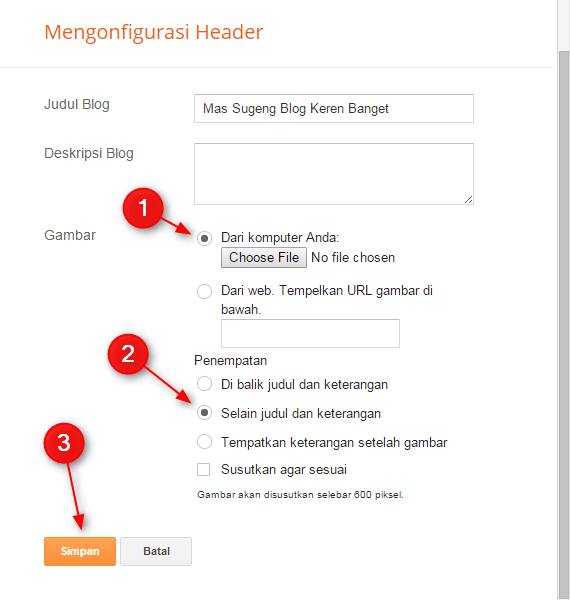
- Choose a logo image file on your computer
- Select " Other than title and description "
- Click " Save "
That's roughly how to change the blog title with logo image. Very simple and not complicated.
Another blogger tutorial
The above tutorial is just a small tutorial blogger that can be read on this blog.To view other tutorials please go to Blogger Tutorial category.Oh yes, my friend can also request blogger tutorial through the comment field below.thanks.
The above tutorial is just a small tutorial blogger that can be read on this blog.To view other tutorials please go to Blogger Tutorial category.
Oh yes, my friend can also request blogger tutorial through the comment field below.
thanks.
Komentar
Posting Komentar